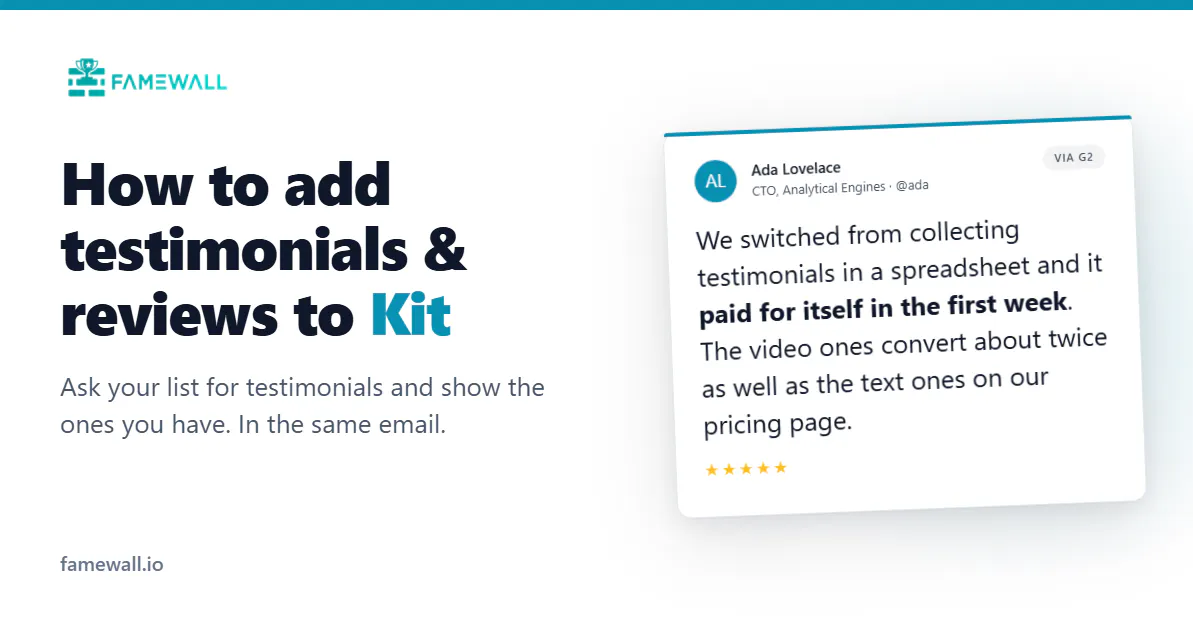
How to Add Testimonials & Reviews to Kit (in 2026)

Your email list is the warmest audience you will ever have.
They already open your emails. They like your work. Yet you miss asking them for a testimonial.
This guide shows you how to add testimonials to Kit, and how to ask your subscribers for new ones in the same email.
Both take about 5 minutes and doesn't need you to write any code.
Kit used to be ConvertKit. It renamed in 2024, but the editor works the same way.
All the tools out there make it tedious to put social proof in an email.
Kit integration on Famewall is different. Famewall installs as an app, and you get four blocks inside the editor that pull straight from your account.

The short version
- Install Famewall from the Kit App Store, under Apps in the left sidebar.
- Approve the connection on the Famewall screen that opens.
- In any email, type / and pick a Famewall block.
- Choose a testimonial or wall in the right sidebar.
- Send yourself a test, then send it to your list.
What you need first
- A paid Kit plan. Kit requires one to install any app from its store.
- A Famewall account. Every plan works, including the free one.
- One wall with published testimonials. The display blocks need something to show. If you have none yet, start with the ask block in Step 4 and come back.
Step 1: Install Famewall from the Kit App Store
In Kit, open Apps from the left sidebar. This is the Kit App Store. Find Famewall and click Install.

That is the whole step. Kit handles the install and sends you to Famewall to approve it.
Step 2: Connect your Famewall account
Kit opens a Famewall page asking you to approve the connection.
Sign in if you are not already, then click Connect. Kit takes you back to your account.
There is nothing to copy or paste here. No API key, no access token, no wall ID.
If you do not have a Famewall account yet, you can create a free one during this step and carry on.
You can disconnect any time from either side, and nothing you have collected gets deleted.
Step 3: Add a Famewall block to an email
Open a broadcast or a sequence email. Click + to open the element menu, or just type /. Four Famewall blocks appear.
Here is what each one does.
| Block | What it does | Use it when |
|---|---|---|
Ask for a testimonial | A short request plus a button that opens your collection page | You want new testimonials from your list |
Display Testimonial | One testimonial as a designed card, in nine layouts | You want proof next to an offer |
Display Video or Audio testimonial | A thumbnail, a play button and a link to the recording | The best thing said about you was said out loud |
Display Wall of Fame | A row of customer faces, your total count and a wall link | You want all your proof behind one email |
Every block puts its settings in the right sidebar.
Leave the Wall field blank and Famewall uses your most recent wall. So a block you have just dropped in already shows something real.
Step 4: Ask your list for testimonials
This is the block worth setting up first, and it is the one most people skip.
Ask for a testimonial puts a short request and a button into your email. The button opens your Famewall collection page, where subscribers can leave a written, video or audio testimonial. They do not need an account and it takes them about a minute.

The settings you will actually use:
- Wording. Quick ask uses short built-in copy. From my form pulls the exact heading, message and question you already wrote on your collection page. Then the email and the page read as one thing.
- Style. Button only is compact and fits under anything. Form preview draws your real form, including the star row and the field, so people can see what they are being asked for before they click.
- Heading, Message and Button label. Anything you type here wins over the wording setting.
- Card theme. Light, dark, or transparent so your email background shows through.
- Colours. Accent, star, text, background and border.
Here is where subscribers land when they click.

The best place for this block is the bottom of an email you were already sending. You do not need a dedicated campaign.
A 2 line ask under your usual content converts well because the reader is already engaged.
Timing matters more than wording. There is a good window right after someone gets a result from you, and it closes faster than most people think.
We covered when to ask clients for a testimonial separately if you want the detail.
If your collection page is still the default, borrow a structure from these testimonial collection page examples before you send.
Step 5: Show a single testimonial
Display Testimonial puts one testimonial into your email as a designed card.
Search for the one you want in the Testimonial field. The search looks across all your walls, not just one.

This block works with everything except video and audio.
Typed testimonials, imported tweets, Google, Trustpilot and G2 reviews, LinkedIn posts and screenshots all render as cards.
Want three testimonials in a row? Add the block three times. You keep control of what sits between them and each card can have its own design.
The Variety of card designs
Card design gives you multiple layouts. Switch between them and the block redraws immediately.

Classic is the safe default. Editorial pull-quote works when the quote itself is the whole point. Proof chip leads with the star rating, which suits an imported review more than a written testimonial.
Any colour you do not set in Kit is filled in from your wall's branding. So a wall with a brand colour arrives already on brand.
Step 6: Show a video or audio testimonial
Video and audio share one block. You get the thumbnail, a play button, the person's name, a line from what they said and a button that opens the recording.

Video does not play inside an email. Email clients strip video players out for security, so the card shows a thumbnail and opens the recording in the browser instead.
The thumbnail is a face, and a face with a play button gets clicked. If you want more of these, our guide to video testimonials covers how to get customers to actually record one.
Set Call to Action button to Hide if your email already has its own line about watching it. The thumbnail and the play button still link out.
Step 7: Link your wall of love
Display Wall of Fame shows a row of up to six customer faces, your total testimonial count and a link to your public wall.

It is the quickest way to put the weight of all your proof behind one email without filling the email with cards.
One thing to know: the row shows the first six testimonials that have a photo. Video and audio testimonials do not carry one, so a wall made entirely of those shows an empty row. Add a few text testimonials with photos and it fills in.
Set your own Heading and Link label, or leave them blank for the defaults. The link opens your wall of love page.
Step 8: Send yourself a test
Use Kit's test send before you send to your list. Open it on your phone as well as your desktop.
Check 3 things.
- The card is readable at phone width.
- The link opens the right page.
- The colours look right against your email background, not just against white.
Adding testimonials to a Kit landing page
The blocks above are for emails. Kit landing pages and forms are a different surface, and they can run the full Famewall widget.
Kit landing pages have a Script block where scripts execute. Paste your standard Famewall embed code into it, set a container height and publish.

On a landing page you get the real widget. It scrolls, it filters and video plays inline. That is not possible in an email and it is worth using where you can.
Keeping it up to date
The blocks read live from Famewall. There is nothing to reinstall or re-upload.
Approve a new testimonial in your dashboard, or turn on auto-approve. Then hit the block's refresh in Kit and the new content appears.

Common mistakes
- Sending an email whose only purpose is asking for a testimonial. Response rates are poor. Put the ask at the bottom of something people already wanted to read.
- Picking your longest testimonial. Long quotes get skimmed past. The best email testimonial is one specific sentence.
- Using the wall block on a wall with no photos. The avatar row comes out empty. Check it in the editor before you send.
- Never sending yourself a test. Themes that look fine on white can vanish on a coloured email background.
FAQs
Can I add testimonials to Kit without a paid plan?
No. Kit requires a paid plan to install any app from its App Store, including Famewall. Your Famewall account can be on the free plan.
Do testimonials update automatically in Kit?
In the editor, yes. The blocks read live from Famewall, so a newly approved testimonial is available straight away. Hit the block's refresh in Kit to pull it in.
An email you have already sent does not change. It is a snapshot from the moment it went out, which is true of every email tool.
What happens if I disconnect Famewall from Kit?
The blocks stop loading and nothing else changes. Your testimonials stay in Famewall and your Kit emails stay intact. Reconnecting restores everything straight away.
Does Famewall read my Kit subscriber list?
No. The connection only sends testimonials into Kit. Famewall never reads your subscribers.
Is there another way to put testimonials in Kit?
You can export a testimonial as an image and drop it in as a normal image block. It works, but the image will not update and it needs redoing every time.
Where can I find the full settings reference?
The Kit integration guide in our help centre documents every block and every setting.
Start collecting testimonials from your Kit list
Famewall is free to start. Create your wall, install the Kit app and put an ask at the bottom of your next email.