How to add Testimonials & Reviews to your Wordpress Website?

Social proof increases your website’s reputation because feedback from your existing customers will encourage more people to choose your product.
Adding the Famewall Wall of Fame to WordPress is super easy. You have 2 easy ways to embed it in WordPress:
Method 1: Famewall Review Widget Plugin
This is the quickest route, and the one to pick if you would rather not touch embed code at all.
Famewall has an official WordPress plugin that adds a Famewall Reviews block to the editor, so you choose a wall from a list and publish.
Start in Famewall rather than in WordPress.
Open the wall you want to show, set the widget up the way you want it to look, and publish it. The plugin only lists walls that have a published widget, so this step comes first.

Now install the plugin.
In your WordPress admin go to Plugins → Add New, search for "Famewall Review Widgets" (plugin link: https://wordpress.org/plugins/famewall/ ), then install and activate Famewall Review Widgets.
Once it is active, open Settings → Famewall and click Connect Famewall.
A Famewall tab opens, you approve the connection there, and WordPress picks it up on its own.
There are no API keys to generate or paste anywhere. Connecting is optional, since you can type a wall’s slug instead, but it is what lets you pick from a list.
Open the page or post where the reviews should go and add the Famewall Reviews block.
Pick your wall, then use the sidebar to choose a layout and a light or dark theme. The preview inside the editor is the real widget, so what you see there is what publishes.

Publish the page and the reviews render into the page itself rather than inside a frame, so they are part of your content and the widget grows to fit however many testimonials you have.
A carousel suits tighter spots, like the end of a blog post.

The slider layout shows one testimonial at a time, which works in hero and header areas where a full grid would push the rest of the page down.

From here it stays in sync. Approve a new testimonial in Famewall and it shows up on your WordPress page straight away, with nothing to re-publish and no page to edit.
Method 2: Custom HTML Plugin
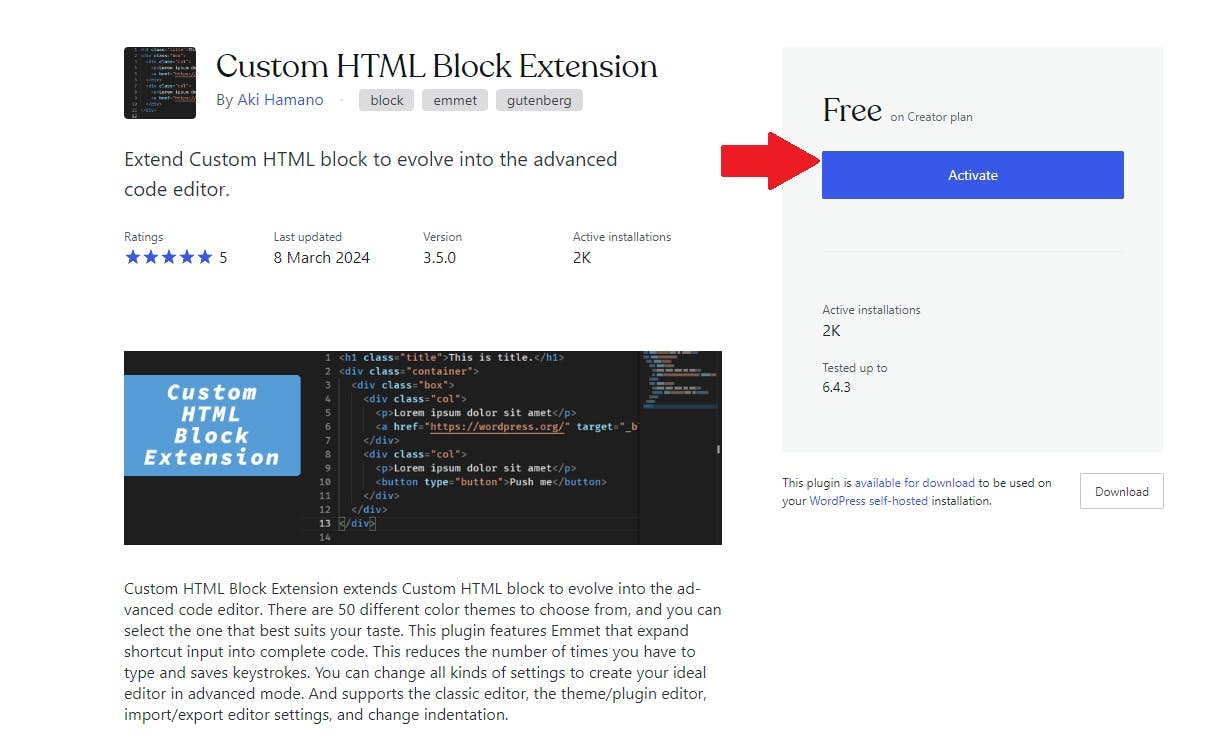
Install the "Custom HTML Block Extension" plugin on your WordPress site
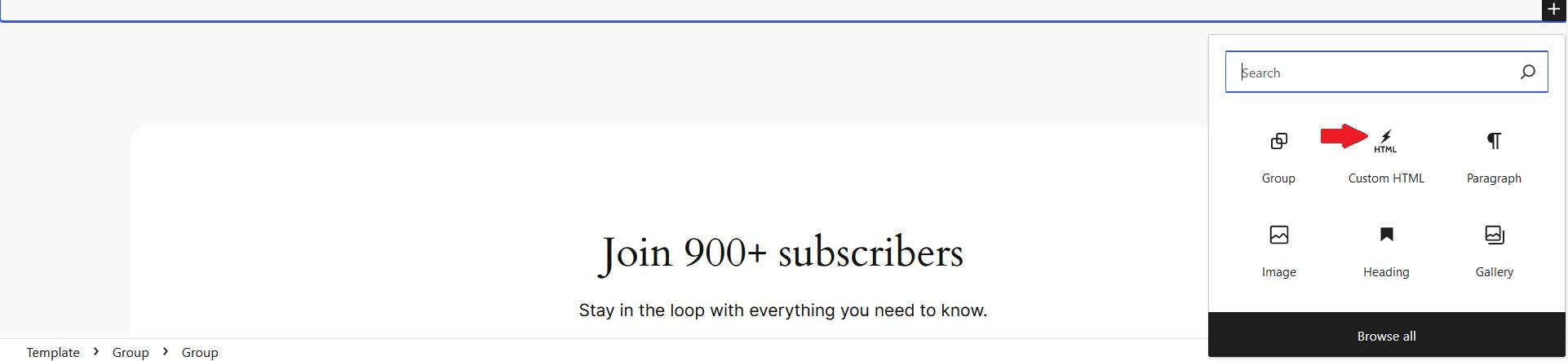
Then, open the page where you want to display testimonials and click on the "Add New Block" button

From the options, select "Custom HTML" (look for the lightning icon made available by the plugin)—this is where we’ll paste the Famewall embed code
Head over to your Famewall dashboard and copy the embed code from your published widget
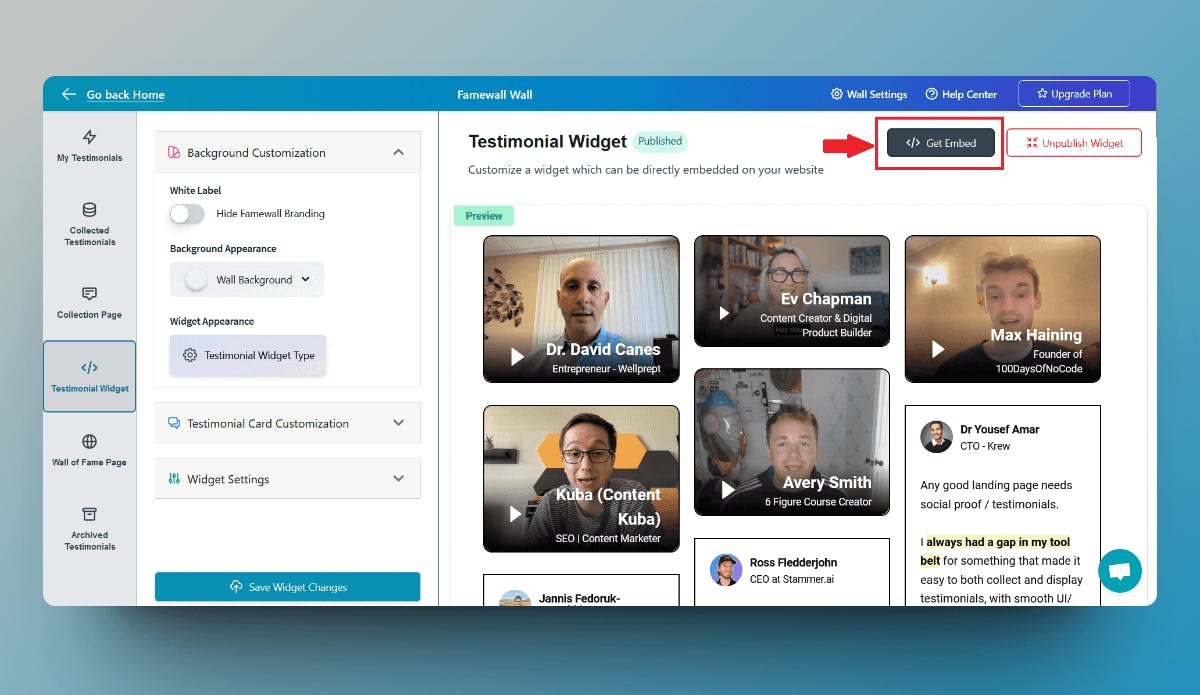
A popup will appear with the code you’ll need to integrate your testimonials on your WordPress site

Now paste the embed code into the Custom HTML block in WordPress
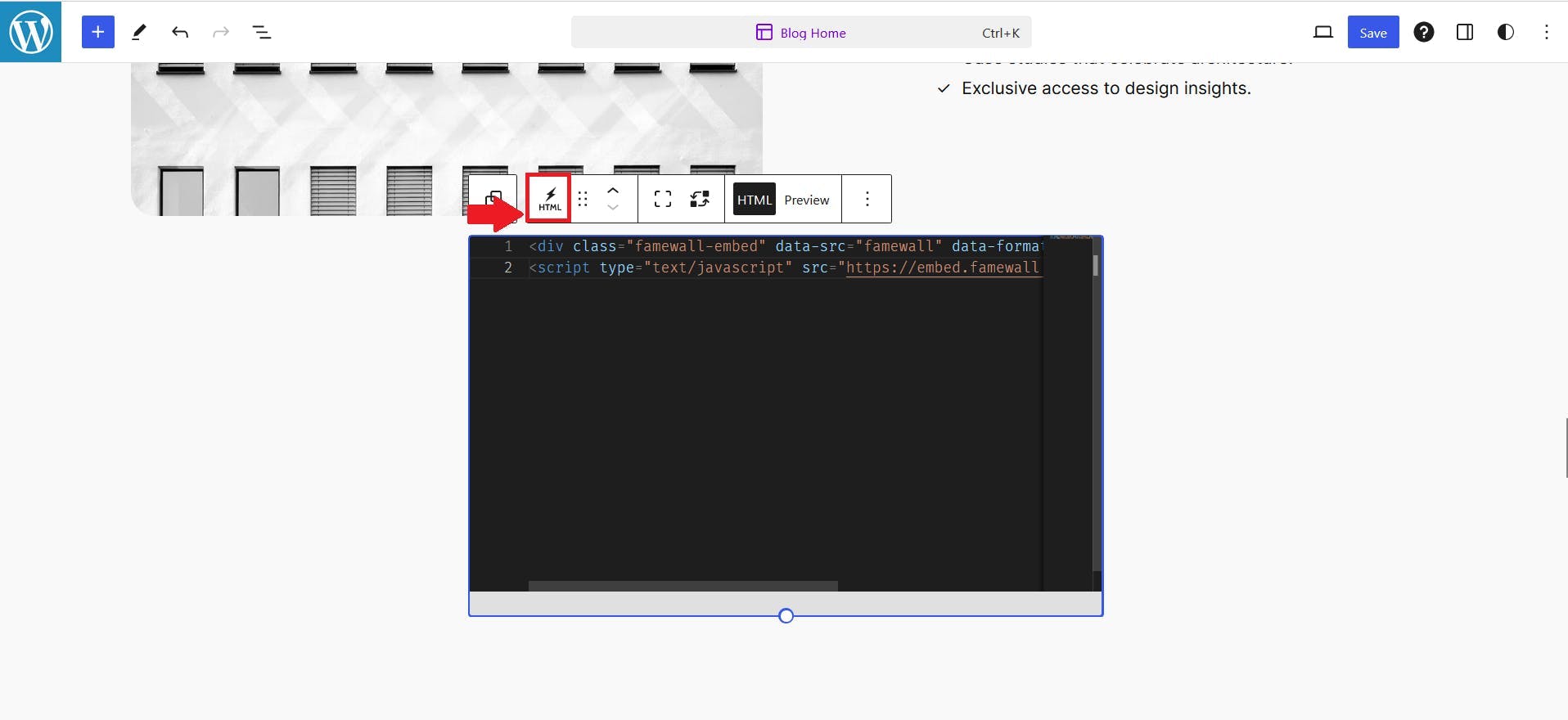
And voilà! Your testimonials wall is now live on your WordPress page!
Try Famewall for free now to collect testimonials and seamlessly add social proof to your site without any coding skills