Year-end appeal
The classic red thermometer for a December appeal letter, email series and website banner.
Make a fundraising thermometer for your campaign in about a minute. Download it, print it or paste it on your website. Nothing is locked behind a signup.
Live preview
Saved in this browser as you type.
Shows match money as a lighter shade, so donors can see which part they gave.
Style
Milestone marks
Fill colour
Background
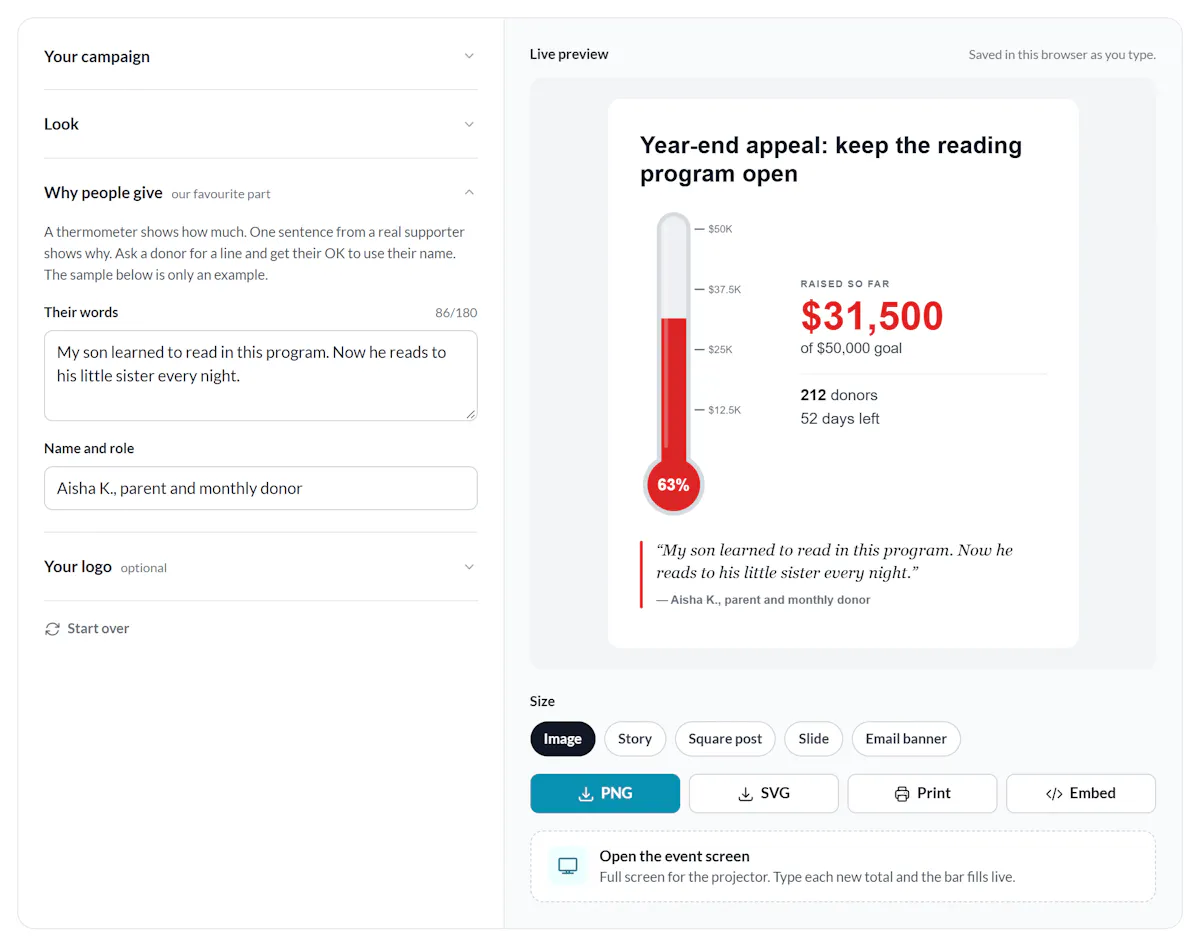
A thermometer shows how much. One sentence from a real supporter shows why. Ask a donor for a line and get their OK to use their name. The sample below is only an example.
PNG, JPG or SVG. It stays in your browser. Nothing is uploaded to us.
Download or embed
Size
Most free generators give you a JPG and then ask for an email before the transparent PNG, the embed code or your logo. Here nothing is gated.
It takes about a minute. There is nothing to install and no account to create.
Use the campaign name your donors will recognise.
Paste numbers straight from a spreadsheet. Commas and currency signs work fine.
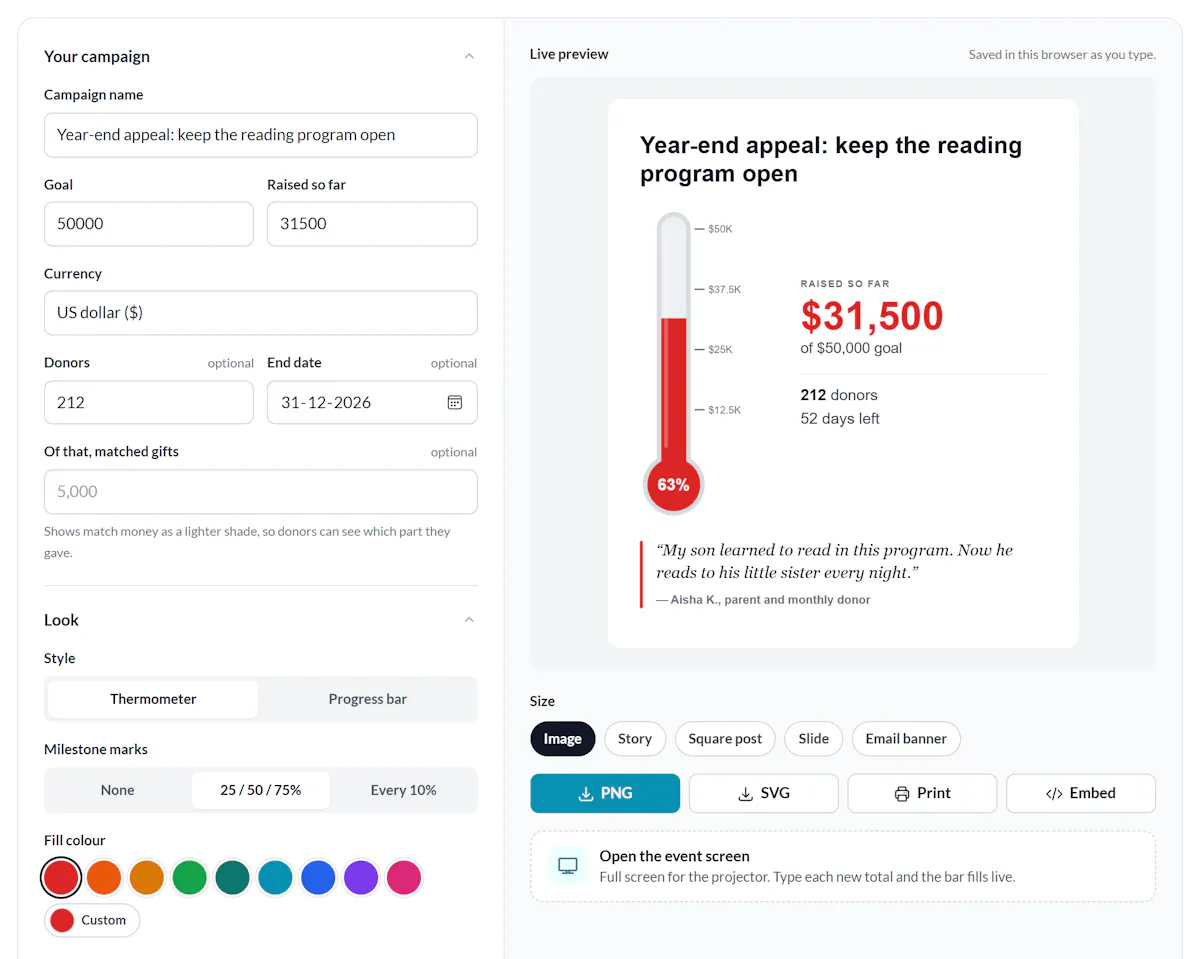
The tall thermometer suits posters, stories and sidebars. The flat bar suits email headers, banners and slides.
Pick your fill colour and turn on milestone marks.
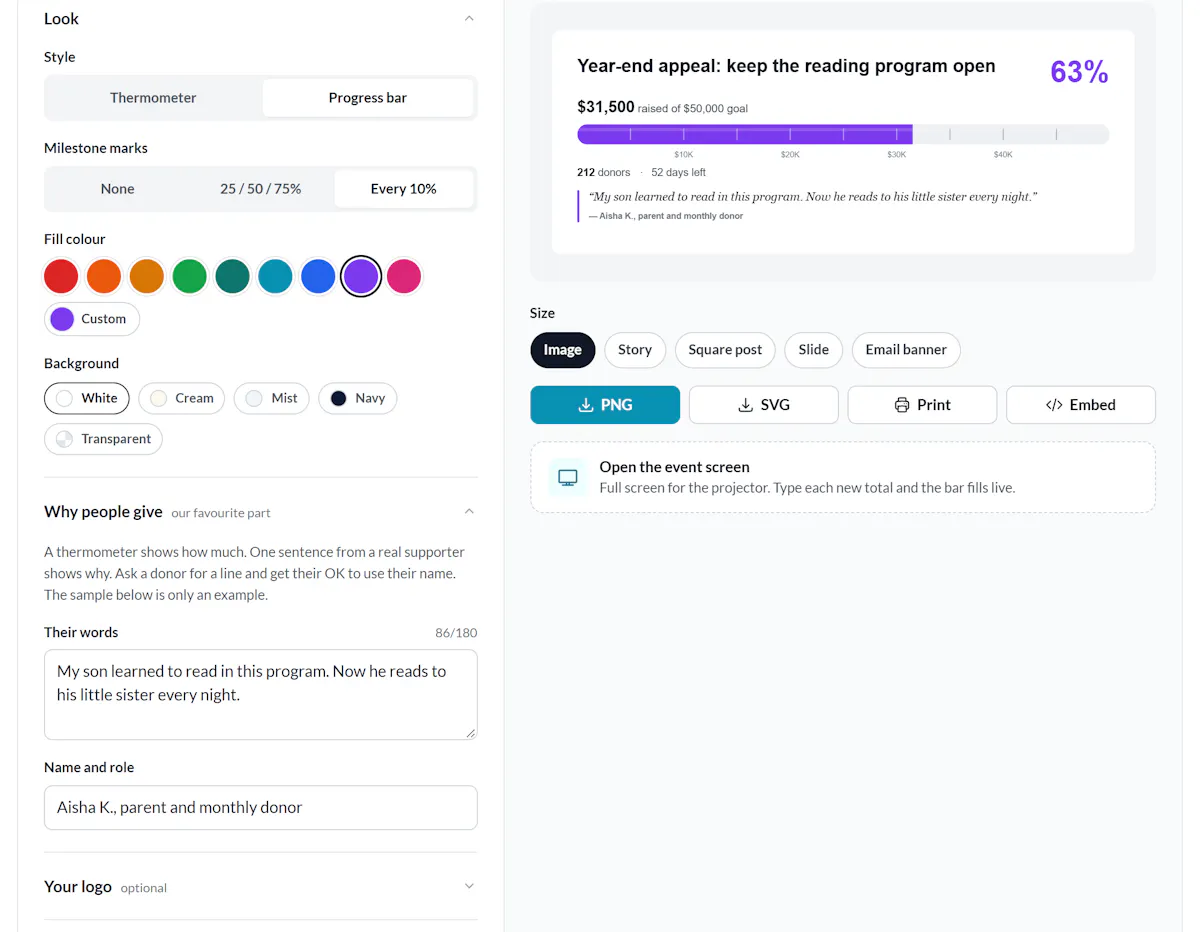
Ask a supporter why they give and put their sentence under the bar.
This is the part most fundraising thermometers leave out.
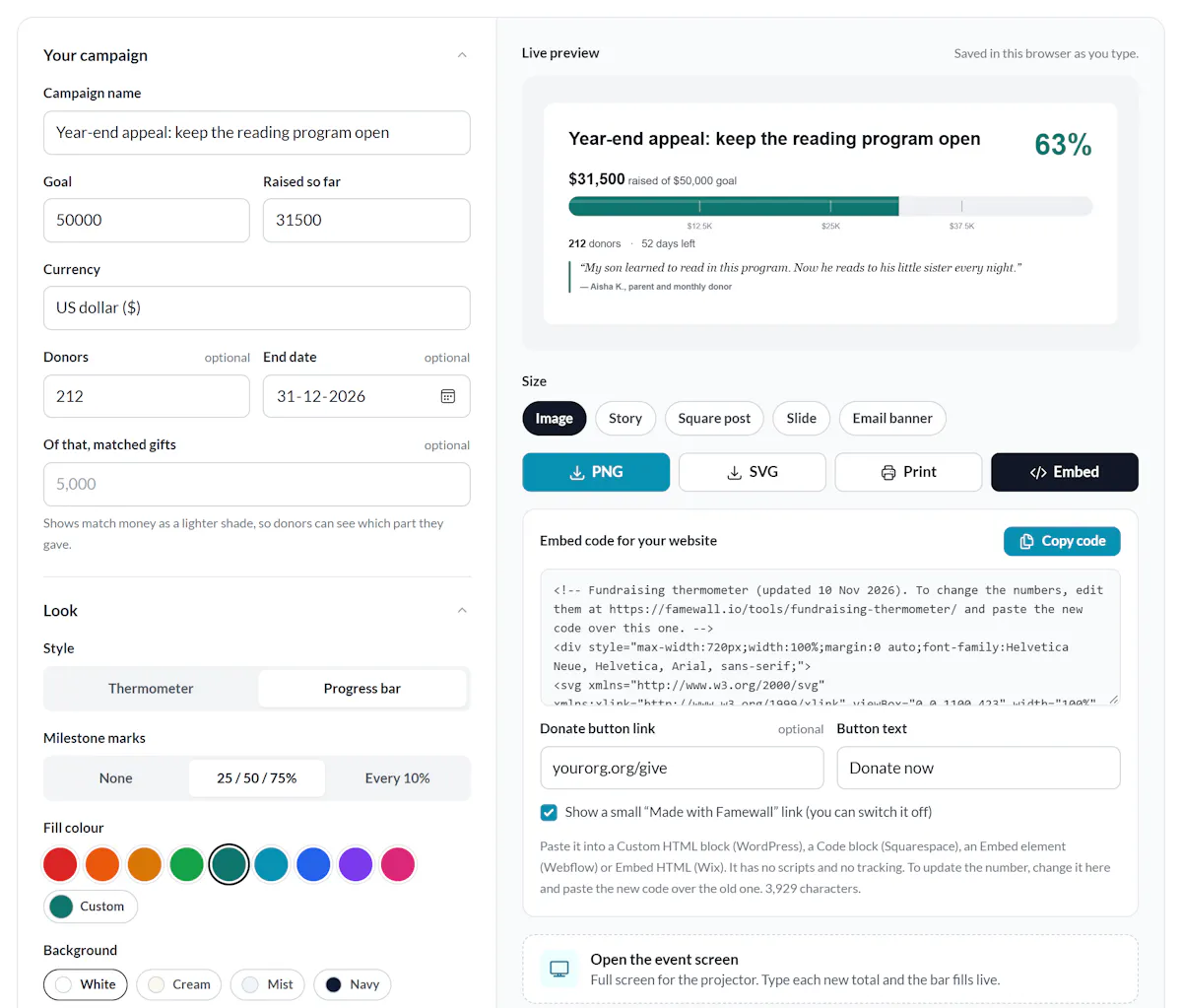
Pick a size and download a PNG or SVG. Print the poster. Or copy the embed code for your website.
Your design stays saved in this browser, so next week you only change the total.
Pick one, then change the name and numbers. Your logo and website settings stay as they are.
The same graphic needs a different shape in an inbox, on a feed and on a projector. Each size in the generator matches one of these.
| Where | What to use | The one tip |
|---|---|---|
| Appeal emails | Email banner (PNG) | Put the donate button right under it. |
| Instagram and Facebook | Story or square post | Post when the number moves enough to notice. |
| Your website | Embed code | Thermometer in a sidebar across a banner. |
| Gala or event night | Event screen | Call the number out from the stage. |
| Office or lobby | Print poster | Use every-10% marks and colour each one in as you pass it. |
| Board meeting | Slide | Total, donor count and days left on one slide instead of the spreadsheet. |
| Thank-you email | Image | Place it below the thank-you. Gratitude first, progress second. |
A new donor’s next question is who else gives here and why. The quote field in the generator answers it with one sentence. On your donation page you can answer it with a whole wall of them.
That wall is what Famewall does. You share one link where supporters write a few lines or record a 30-second video about why they give, with consent on the same page. You approve the best ones and a wall of supporter stories goes live under your thermometer with one embed. No developer.
When the Chartered Institute of Public Relations (CIPR) asked its members for stories, it collected 175 written and 25 video stories in two weeks from one collection page.
Nonprofits use the same setup to give every program its own wall of impact stories.
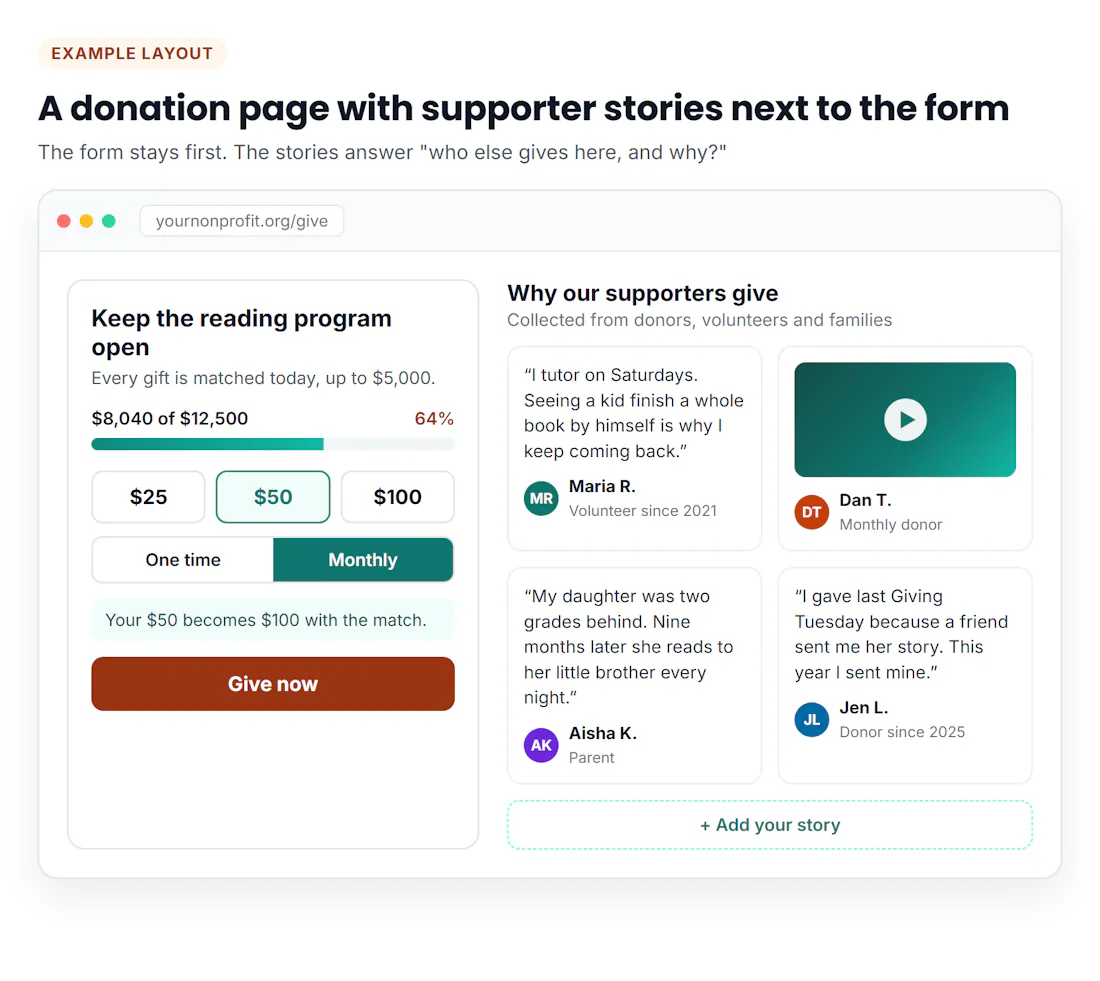
Example layout: the goal bar sits next to the form and the stories answer “who else gives here?”
Writing the appeal itself? Your thermometer image fits right under the ask in any of these fundraising letter examples.
| Where it goes | Download | How |
|---|---|---|
| WordPress, Squarespace, Wix, Webflow | Embed code | Paste it into a Custom HTML block, a Code block, Embed HTML or an Embed element. |
| Mailchimp or any email tool | Email banner PNG | Upload it as an image. Email apps strip embed code and most block SVG. |
| Canva | Transparent PNG | Upload it, then drag it onto your design. |
| Google Slides, PowerPoint, Keynote | Slide PNG or SVG | Insert it as an image. SVG stays sharp on a big screen. |
| Word or Google Docs | PNG | Insert it as an image. Use the print poster for the wall. |
Type your goal and the amount raised into the generator at the top of this page. Pick a thermometer or a progress bar and a colour. Then download a PNG or SVG, print a poster or copy the embed code for your website.
Yes. Every download, the print poster, the embed code and the event screen are free with no signup or email form. Downloads carry no watermark. The embed has a small Famewall link that you can switch off.
Yes. It works for any goal and in 16 currencies. Choose “Not money” in the currency list to count meals, books, volunteer hours or members instead.
The thermometer fills to the top and shows the real percentage, like 112%, with a “Goal reached” label. Many teams then announce a stretch goal and make a new thermometer for it.
Put the amount raised and the amount left in two cells. Insert a stacked column chart and set the gap width to zero. Colour the raised part and make the rest light grey. It works, but it will not print or embed as cleanly as an SVG.
Yes, as an image. Download the Email banner size as a PNG and upload it to your email tool. Do not paste the embed code into an email, because most email apps remove it.