5 Best Online Coaching Tools in 2026 (I Tested Them All)

Today, there is an increased demand for online coaches for almost any niche you can imagine.
The International Coaching Federation reports that the number of professional coaches increased globally by 54% from 2019 to 2023.
The profession also generated over $5 billion in 2024, and the numbers are increasing day in, day out.

But we know that with this kind of growth comes one thing that cannot be avoided: competition.
To succeed as an online coach, you’ll need more than skill. You also need the right online coaching tools, from scheduling platforms to a solid coaching intake form that sets the tone before a session even starts.
In this article, I’ve personally tested some of the best online coaching tools to make you stand out, so you don’t have to waste time figuring it out on your own.
Let’s take a closer look at these coaching tools.
Table Comparison: Best Online Coaching Tools
| Online Coaching Tool | Key Features | Starting Price | Best For |
|---|---|---|---|
Famewall |
| Free | Coaches and creators who want to collect, display, and automate client testimonials |
Capacities |
| Free | Digital creators who need a structured productivity and knowledge-organization system |
Thinkific |
| $36/month | Creators who want to sell courses, run coaching, and manage an entire digital business |
Cal.com |
| Free | Coaches and creators who run frequent calls |
Read AI |
| Custom | Online coaches who want hands-free note-taking and meeting intelligence |
5 Best Online Coaching Tools
1. Famewall
My rating: ⭐ ⭐ ⭐ ⭐ ⭐ 4.8/5 stars
Starting price: Free
Connects with: Zapier, Make, Slack, CRMs, 5,000+ apps
Best for: Online coaches and creators who need impactful testimonials and social proof
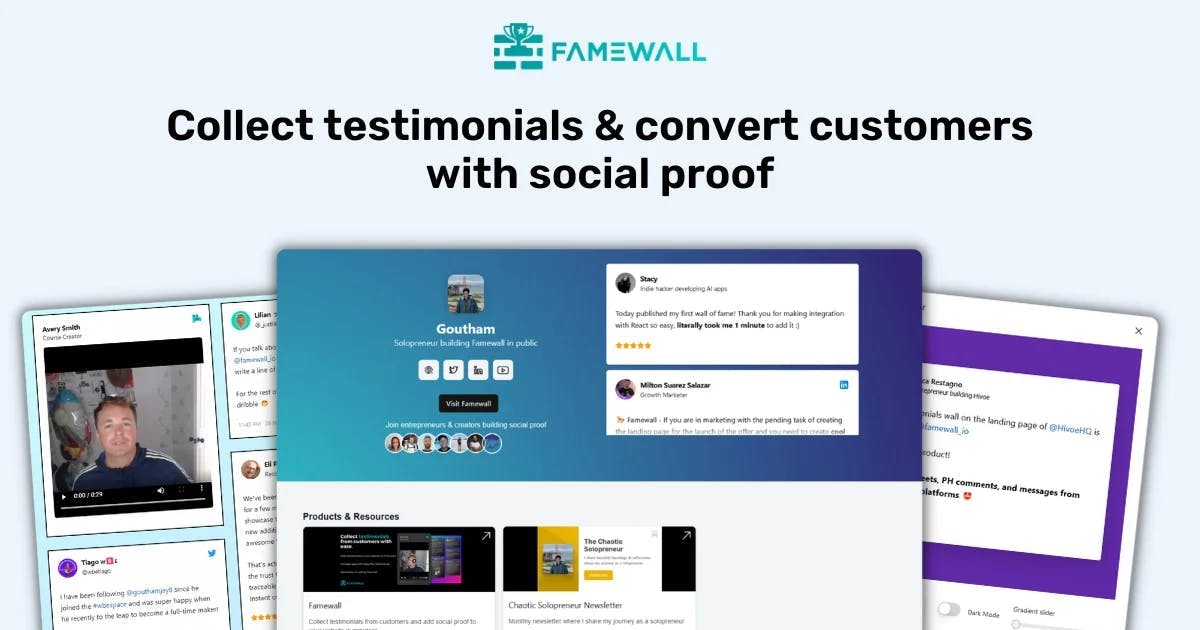
Famewall is a social proof platform that allows you to collect text, audio, and video feedback from your coaching clients.

It works great for coaches, consultants, and course creators who want to boost their credibility, because it is the best way to show proof from real people who have achieved real results from your coaching.
No matter how good you are at coaching and transforming lives, new clients don’t want to feel like they’re the first ones you’re coaching.
The best testimonials for coaches come from clients who can speak to specific transformations - weight lost, revenue gained, habits changed
They want to see proof that you’ve already helped people so they can trust you to help them.
So you need to show them that proof.
Famewall’s Testimonial Walls feature helps you do this in the best way possible.
It gives you a beautiful interface where you can add your logo, background, and brand colors and display your testimonials proudly.

That’s not all Famewall does.
If, instead of just a wall of fame, you want a page that has your products, services, and social media handles along with social proof, then Brand Pages is perfect for you.
Enter your URL and start adding your offers, links, and testimonials, and Famewall will take that and create a website brand page for you.

An issue that arises when it comes to collecting reviews is that some businesses post fake testimonials that cause customers to distrust them.
To protect your brand and prove your reviews are real, Famewall’s Social proof avatar section allows you to add client photos and snapshots or email signatures on sales or checkout pages.
To create a new avatar collection, you simply name the collection and start adding client photos or testimonials.

As a busy person myself, collecting thank-you emails, saving, and importing testimonials manually sounds like a chore, and it can be.
But you can automate that process on Famewall. Simply generate your Zapier API key and connect Famewall to over 5,000 apps.
From there, you can create your Automations.
For example, you can automate sending a gift card discount whenever someone sends you a video testimonial, or send a thank-you email as soon as the customer submits a testimonial.

1. Testimonial Walls
One of my favorite features of Famewall is the Testimonial Wall page.
I love it for two reasons. One, it allows you to proudly display your social proof, and two, it is highly customizable.
You can create different walls for different campaigns and each would have its own set of collection page, widgets and much more
Now, let me walk you through how to create a testimonial wall.
Inside the ‘Testimonial Walls’ section, click Create Wall.

Then name your wall, add your URL, upload your brand logo, and add a description.

This opens a page from where you can collect testimonials using the “Add/Import” Testimonial button.

No matter which platform you received feedback from, you’ll be able to add it to your wall. Whether it’s from Twitter/X, Reddit, Instagram, Google Reviews, you name it.

After adding your testimonials, you can customize your page by choosing a design layout. You can use the simple, plain, gradient grid or dark gradient design.

What’s more, Famewall allows you to be very versatile when it comes to sharing testimonials.
For example, you can use some of the testimonials you’ve imported to create a social sharing video, which you can also customize by editing the text and colors. This way, it fits your brand. Picture that!

As a coach, you can display text, audio, and video testimonials from your clients through social proof widgets that embed directly on your website - a significant boost to your business., thanks to Famewall!
2. Brand Pages
You’re not limited to a Wall of Fame page that displays only your testimonials. Brand pages allow you to show more.
This feature offers a unique website page that displays your social proof and brand details together.
To start, click on “Create Brand Page”.

Then enter your brand URL and click the “Create Blank Page” button below.

You can make the brand page uniquely yours with the brand customization features here.
Play with the colors, fonts, backgrounds, and customization features until you find the look that suits your brand's needs.

Things I loved and What could be better
Things I loved 👍
✅ Collecting text, video, and audio testimonials is very easy.
✅ The testimonial walls look clean and professional without extra design work.
✅ It integrates with Zapier, Make, Slack, and thousands of apps.
✅ Automations save time by handling follow-ups, thank-you messages, and imports.
✅ The customization options let you match your exact brand style.
What could be better👎
❌ Some advanced branding features feel limited on the free plan.
Best For
Coaches, consultants, and creators who want to show off client success stories that they’ve received on their website or on social media similar to these coaching testimonial examples
Pricing
- Free plan: $0 / month (per user)
- Standard: $11.99 / month (per user)
- Professional: $29.99 / month (per team)
- Business: $99.99 / month (per team)

2. Capacities
My rating: ⭐ ⭐ ⭐ ⭐ 4.6/5 stars
Starting price: Free
Connects with: Calendar apps, Readwise, Web Clipper, Sync tools
Best for: Coaches and digital creators managing complex client notes, tasks, knowledge, and long-term planning
Capacities is a note-taking and task management app.
As an online coach, you’ll need a tool like this to organize your ideas, client notes, and meetings.
Capacities uses an object-based system. This means clients, meeting notes, ideas, tasks, and projects all become an organized “object” that you can link together.

Since coaching involves interacting with multiple clients and teams, keeping track of all of them can get messy.
The Organization tool removes this issue by helping you create a dedicated space for every group you work with.
You can save details like your notes and insights, and link related meetings and people.
When you open an organization object, you’ll see the history of the interaction and your current relationship with the client.

Suppose you want to start a project, like a new content series.
The Project feature can help you do this. You name the project, add a description, tag it, track its status, set start and due dates, and keep all notes, ideas, and collaborators.
This is so that you can track your project’s progress and stay focused from the planning stage to completion.
The Meeting feature is where you save every coaching session or conversation.
You add the meeting date, the people involved, the type of meeting, tags, and all your key notes in this object.
Your meeting then automatically connects to the client, the project, or the organization it belongs to.

1. Meeting
Creating a meeting in Capacities only takes a few steps.
Start by opening Capacities and clicking the “New content” button. From the list of object types, choose “Meeting”.

Name the meeting and add the meeting date.
After setting the date, fill in the People field with the individuals who were part of the meeting. You can mention existing clients, type new names, or add extra context.

You can also link the meeting to the client’s main object, any ongoing projects, goals you're tracking, or resources you referenced during the call.
This makes the meeting feel like part of a bigger, connected system.
2. Projects
To create a project, click the “New content” button and select “Project” from your object types.

Then name your project.

Add your description and set your start date and due date. If you’re thinking that it’s a lot of work to do all that on your own, you have a point.

But Capacities has an AI assistant that can help you fill all that out. To find it, click on the three dots at the upper right corner of the page and select “Object Settings”.

Then open the AI Assistant. Using an AI model of your choice, you can develop any project and link it to any other object.

Things I loved and What could be better
Things I loved 👍
✅ The object-based system keeps client notes, tasks, and meetings neatly linked.
✅ Projects make long-term planning structured and simple.
✅ The Meeting object helps you track every session clearly.
✅ The AI assistant fills and organizes objects with almost no effort.
✅ It handles complex workloads better than most note-taking apps.
What could be better 👎
❌ The layout feels confusing at first for beginners.
❌ Collaboration features are not advanced.
Best For
Best for coaches and digital creators who need a structured way to organize client notes, tasks, and projects in one system.
Pricing
- Basic - Free
- Pro - $9.99/month
- Believer - $12.49/month

3. Thinkific
My rating: ⭐ ⭐ ⭐ ⭐ 4.7/5 stars
Starting price: Free
Connects with: Stripe, PayPal, Zoom, Calendars, Email tools, Zapier, Webhooks
Best for: Coaches, educators, and digital creators who want to sell courses, run coaching sessions, build funnels, and manage clients without using multiple tools.
Thinkific allows you to add coaching packages and courses, upload training material, plan sessions, and accept payments on a single platform.
As a coach or creator, you need a system that can do all this even if you don’t have a technical background. Thinkific has some cool features to help you with this.

Right from the homepage, you can create different types of products, digital downloads like ebooks, guides, workbooks, and templates.
You can also create courses for your learners, one-on-one coaching experiences, webinars, communities, and memberships.
That’s not all, you can create your own landing page and website under the channels feature. Here you will see all the landing pages you have created and edit them.
The best part about this Channel feature is that it is AI-powered, so you don’t have to go through the hassle of manual creation.
You don’t need another online coaching tool to handle your lead generation and funnel building, either.
Inside Thinkific’s Marketing section, you can add your leads and their details, build a funnel, add an affiliate link, or automate emails.
This means you can manage your client communication and everything related from here.
If you want to understand your users better, you can use the Users' dashboard.
With it you can search users by email or name and determine how much a user has spent. You can also find out how many courses they are enrolled in.
Thinkific allows you to put users into groups and assign certificates with no external app. You can also track individual and general student progress.
And once students complete a course, collecting course reviews from them becomes a natural next step to build your reputation
1. Products
If you want to create your first product on Thinkific, locate and click on “Create”. This is where you can start creating different products from, all powered by AI tools.
You’ll see options for various digital products. Let’s see how to set up a Coaching product, for instance.
After selecting Coaching, you will see the Powered by AI box. Here, you describe what you want your audience to learn, and it sets up the entire coaching session for you.
Next, type in your description and create your product.
The AI tool handles the entire creation process.
As you can see, you have an event page where you can edit details like the name of the coaching session and event type. The event can be a live event (webinar), a one-on-one, or group session.

Next, you can set your price. You have the option to provide a free lead magnet, a one-time payment, or a monthly payment option.
Then save your pricing and move on to the next section.

This is your landing page. It is also highly editable and professional. It’s where anyone who has your link will be sent to schedule a session with you.
You can change the font, background, and any other sections to fit your brand image. After that, click “Publish”, and your coaching session is live and ready to run.

2. Marketing
Another great Thinkific feature is the Marketing feature. It has Leads, Funnels, Affiliates, and Email automation under it.
To create a funnel with this feature, click on “Funnels”, and then “Create a funnel”.

The goal of this funnel we’re creating is to provide a free lesson as a lead magnet.
There is also an option to create a paid funnel with a sales page and checkout, but let’s create the free lead magnet funnel.
You can do this by selecting the Free lesson funnel and clicking Create.

Next, you can choose a course to sell as part of the funnel. If targeting a particular customer in a paid course, you can offer a discount. But that’s not what we’re looking for here.
So click “Next” and move on.

Now we’re at the actual funnel creation section. Again, you can choose to use AI to build the funnel or to create your own from scratch.
Let me show you how AI can help you build the funnel you can edit as you go. Click on ‘Start with AI Magic’.
All of a sudden, you have a free lesson funnel set up for you with a lead capture page that offers a free lesson all the way to the thank-you page at the end of the flow.
Click on publish funnel, and that’s it.

Things I loved and What could be better
Things I loved 👍
✅ You can create courses, coaching, and digital products quickly using AI.
✅ The landing page builder is simple, clean, and perfect for beginners.
✅ Marketing tools like funnels, email automation, and affiliates are built in.
✅ User analytics are detailed so you can track progress, spending, and engagement.
✅ You don’t need extra software for certificates, communities, or memberships.
What could be better 👎
❌ Some advanced customization options require upgrading to higher plans.
❌ The learning curve can feel slow if you're new to online platforms.
Best For
Thinkific is best for coaches, educators, and creators who want an online coaching platform to build courses, run coaching sessions, create funnels, and manage their entire online business without using multiple tools.
Pricing
- Basic - $36/month
- Start - $74/month
- Grow - $149/month
- Thinkific Plus - Custom

Pairing it with a tool that handles testimonials for course creators covers the social proof side that Thinkific doesn't natively offer.
4. Cal.com
My rating: ⭐ ⭐ ⭐ ⭐ 4.7/5 stars
Starting price: Free
Connects with: Zoom, Google Meet, Zapier, HubSpot, Webhooks, Stripe
Best for: Online coaches who schedule many client sessions and want automation
The next online coaching tool that’s great for coaches and content creators is Cal.com. You can use this to schedule all your meetings and take calls.
All you need to do is connect your calendar and set your availability, and Cal takes care of the rest.

Take a look at its Events type page, for example. Every online coach sets meetings all the time for various events.
On this page, you can create as many event types as you need and share the link or add the event type to your workflow. Or simply select a pre-existing event and share that with your customers.

The Workflows feature can make your life easier because you can create a workflow from scratch or use some of the Cal.ai templates.
And you can use this system to set up calls to confirm bookings, follow up with no-shows, or send reminders to your clients.

When it comes to integrations, the App Store has apps like Google Calendar, Google Meet, and Zoom. It also has automation, analytics, and calendar apps you can use in your workflow.

And if you’re a team member, you can create your Team in this feature and set up collective scheduling, round-robin, and fixed round-robin meetings especially useful for group coaching programs where multiple facilitators manage overlapping sessions.

1. Event Types
One of the most useful Cal.com features is Event types. You can create different types of events with this tool.
There are preset meeting times you can choose and share. But you can also create a custom event by clicking on ‘New.’

Add the event name, description, and duration.

This will open a page that you can edit and add further details about your event type.
For example, you can set availability, limits on how often you can be booked, set up a recurring schedule, link your apps, or add the event to a workflow that will run independently.

2. Workflows
To create a workflow, click “Create a workflow” or “New”. Better still, you can select one of the templates available.

I decided to create a workflow using the Cal.ai templates. These AI agents can book meetings, send reminders, and follow up, so there’s nothing that you need to get involved with manually.

This is what the template looks like.
It’s made up of triggers and actions. You can specify when, how long, which event type a trigger applies to, and which action should occur afterward.
When you’re done setting it up, click “Save”, and your Cal.ai agent will set up the workflow for you.

Things I loved and What could be better
Things I loved 👍
✅ Booking sessions is effortless once your calendar is connected.
✅ Workflows automate reminders, follow-ups, and confirmations.
✅ It integrates well with Zoom, Meet, Stripe, and Zapier.
✅ Teams can schedule calls using round-robin or collective availability.
✅ Event types help you organize all your coaching sessions neatly.
What could be better 👎
❌ The workflow builder can feel overwhelming at first.
❌ Some integrations need technical setup.
Best For
Best for coaches who need a flexible, automated scheduling system for managing frequent client calls.
Pricing
- Individuals - Free
- Teams - $15/month
- Organizations - $37/month
- Enterprise - Custom

5. Read AI
My rating: ⭐ ⭐ ⭐ ⭐ 4.6/5 stars
Starting price: Custom
Connects with: Zoom, Google Meet, Teams, Calendar
Best for: Coaches, creators, and business owners who want automatic meeting transcription, summaries, insights, and follow-ups
Another online coaching tool for accurate, automatic meeting note-taking is Read AI.
It joins your Zoom, Google Meet, Teams, or in-person audio recordings and generates clear summaries, action items, follow-ups, and insights.
Many coaches struggle with taking notes while staying present in a session. Read AI solves this problem by recording the meeting.

The easiest way to use Read AI is through its Search Copilot.
Instead of scrolling through pages of notes and reports, ask the Search Copilot for major takeaways, next steps, or overdue tasks.

With the reports feature, you can search for a report title, upload a report, or look for a report type, and it’ll pull out the report for you.

Another awesome feature is the Calendar feature, which you can use to schedule all your meetings and share the scheduling link with your clients.

1. Search Copilot
Let’s look at the capabilities of the Search Copilot.

It gives detailed or summarized information based on your requests. You can always request more specific information concerning a particular matter.

If you don’t want to manually upload a report or meeting for analysis by the Copilot, you can add the AI to a live meeting so that it automatically transcribes the meeting.
This way, all you need to do is ask questions, and since it was present for the meeting, it’ll provide answers.

2. Calendar
Here you can select default active scheduling links for 15, 30, 60, and 90-minute meetings.

Or set up a new custom link where you determine the duration, platform, and add a minimum notice for scheduling.

When you’re done, you can share the meeting link, and people can schedule on your available times.

Things I loved and What could be better
Things I loved 👍
✅ It generates fast and accurate meeting summaries.
✅ Search Copilot helps you find insights without reading long notes.
✅ It extracts action items and follow-ups automatically.
✅ It works with Zoom, Google Meet, Teams, and real audio uploads.
✅ The calendar link makes scheduling simple.
What could be better 👎
❌ Pricing is not transparent and depends on your plan.
❌ It requires stable audio quality for best results.
Best For
It’s ideal for life coaches, business coaches, group coaching programs, and anyone running frequent client calls.
Pricing
- Custom

Choose the Best Online Coaching Platform
I have tested all these platforms myself. I have also seen how each one solves a real problem coaches face every day. So now, these online coaching tools can transform the way you work.
Whether you need better scheduling, smarter notes, or testimonials, these online coaching tools will save you time and make you more productive.
If you’re serious about growing your impact, combining the right tools with strong social proof can skyrocket your course sales faster than any ad campaign
Try Famewall for free to start collecting video testimonials from customers with a simple link & display them as social proof on your websites without writing any code